

todobar
a terminal-first todo list that fits my workflow, with a menu-bar view to keep me honest.
python · rumps · launchd · markdown
in daily use, self-restarting.
A todo list that lives where I already work, the terminal. It started as a small TUI I could pop open without leaving my keyboard, and later grew a macOS menu-bar companion so I could glance up and actually see what I still had to do. Both read and write the same markdown file my note system already uses, so a task captured anywhere shows up everywhere, no separate database, no sync service, just one shared file.
why i built it
I live in the terminal, so a todo list that made me stop what I was doing, switch to some app, and click around was never going to stick. What I actually wanted was something I could summon in a second without leaving the keyboard, capture a task, and get straight back to work. So I built it as a TUI first, a small terminal interface that fit the way I already move through my day instead of asking me to change it.
The menu-bar version came later, and for a slightly different reason. The terminal is great for capturing and clearing tasks, but it only shows them when I go looking, and things I don't see are things I forget. Putting the list up in the menu bar gave me a passive, always-visible reminder of what I still owed myself that day. It's less about capturing tasks and more about keeping me honest about them.
the thinking
Two decisions carry the whole thing. First, one plaintext file as the source of
truth, shared by three clients, the menu-bar app, a terminal fzf UI, and a bare
todo <text> command. They stay compatible because every task keeps the same simple
- [ ] text line format and the grouping lives only in ## headings, which each
client's checkbox scan quietly ignores. Second, tasks group by horizon (today or
this month) rather than by due date, because that's how the work actually feels to
me. Some things are today-goals and some are this-month-goals, and a hard calendar
date was always a little fiction I had to keep maintaining.
how it works
A shared stdlib-only engine (todo_cli.py) owns all parsing and mutation and
rebuilds the file into canonical sectioned form on every write, so the structure is
self-healing no matter which client touched it. The menu-bar app (rumps)
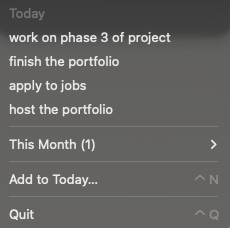
imports that engine, lists today's tasks inline, tucks this-month into one submenu,
and shows a badge counting open today-items. The terminal fzf UI is a
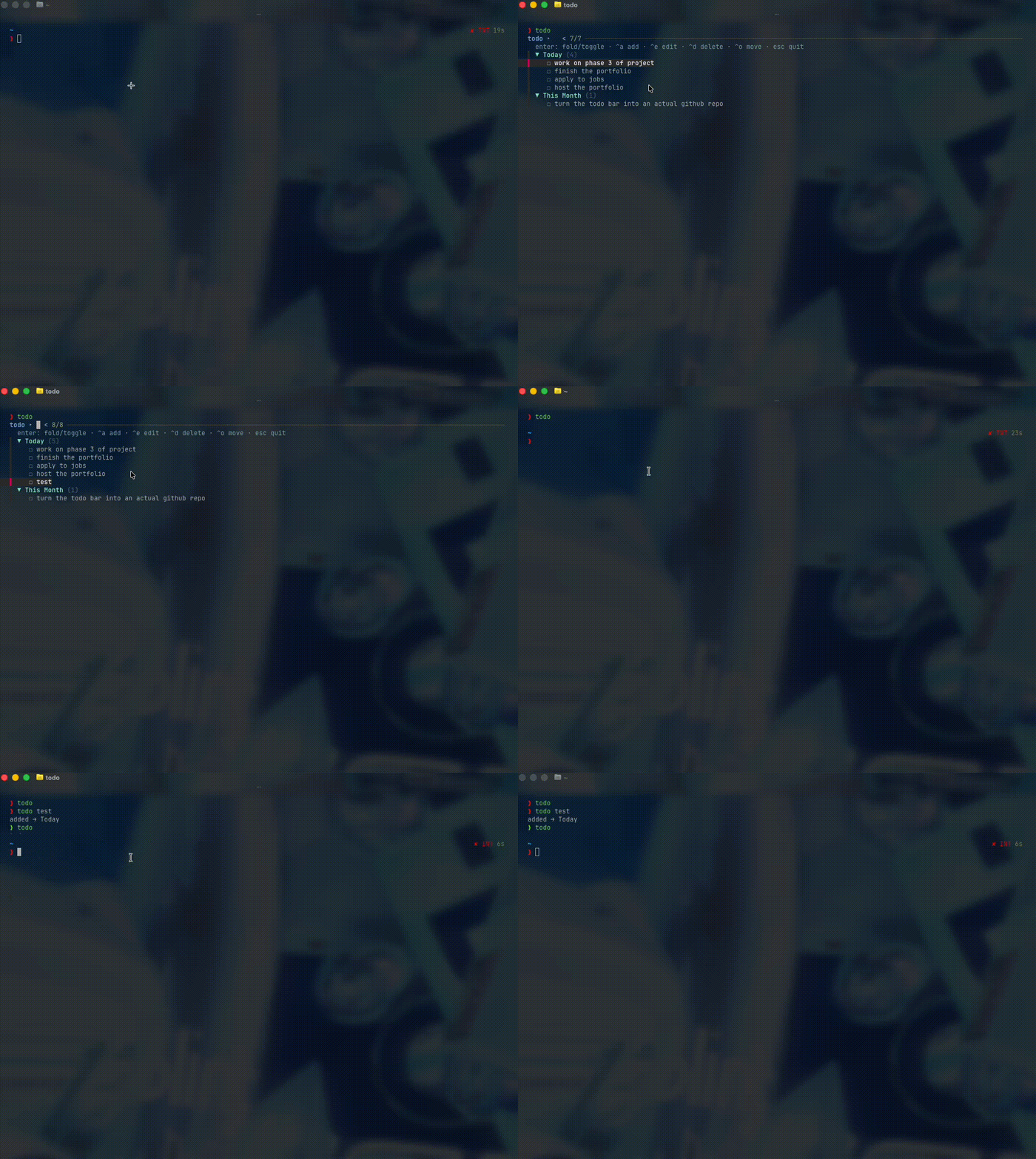
collapsible, yazi-style view where enter folds a heading or toggles a task and
^a/^e/^x/^g add, edit, delete, and move between horizons. The app runs as a
menu-bar-only accessory (no Dock icon) under launchd, and restarts itself if the
widget ever disappears.
walkthrough
1. the shared file and engine
Point everything at one markdown file (mine lives in the vault inbox) and drop in
todo_cli.py as the single engine. Gotcha. Every client must keep the exact
checkbox line format, since grouping only ever lives in ## headings so the older
dumb-append todo command keeps working.
2. the terminal wrappers
Thin zsh functions (todo / todos / todo-clear) wrap the CLI, and todo with no
args opens the fzf UI. Each fzf row hides a token that binds the keypress back to the
CLI, and every action is an execute-silent plus reload.
3. the menu-bar app under launchd
todobar.py (rumps + AppKit accessory policy) loads via a LaunchAgent plist.
Gotcha. Menu-item shortcuts (⌘N add, ⌘Q quit) only fire while the menu is open,
and you must launchctl unload/load the plist to pick up any edit.
verify
Add a task in the terminal, open the menu bar, and it's there. Tick it off in the
menu bar, run todos, and it's done. One file, three views, always in sync.
what i learned
The nicest outcome is that it disappeared into my routine. It's in daily use and I stopped thinking about it, which is the highest compliment a tool like this can earn. The design lesson was that the file format is the real API. Because all three clients agree on one dumb line shape, I could add horizon grouping later without breaking the append-only path. If I keep going, per-item move-to and edit-in-place in the menu bar are the obvious next handles.